Open SchoolQuest on the family device
Open SchoolQuest AI in the browser and sign in on the phone or tablet your family will use.
 Back to SchoolQuest AI
Phone and tablet setup
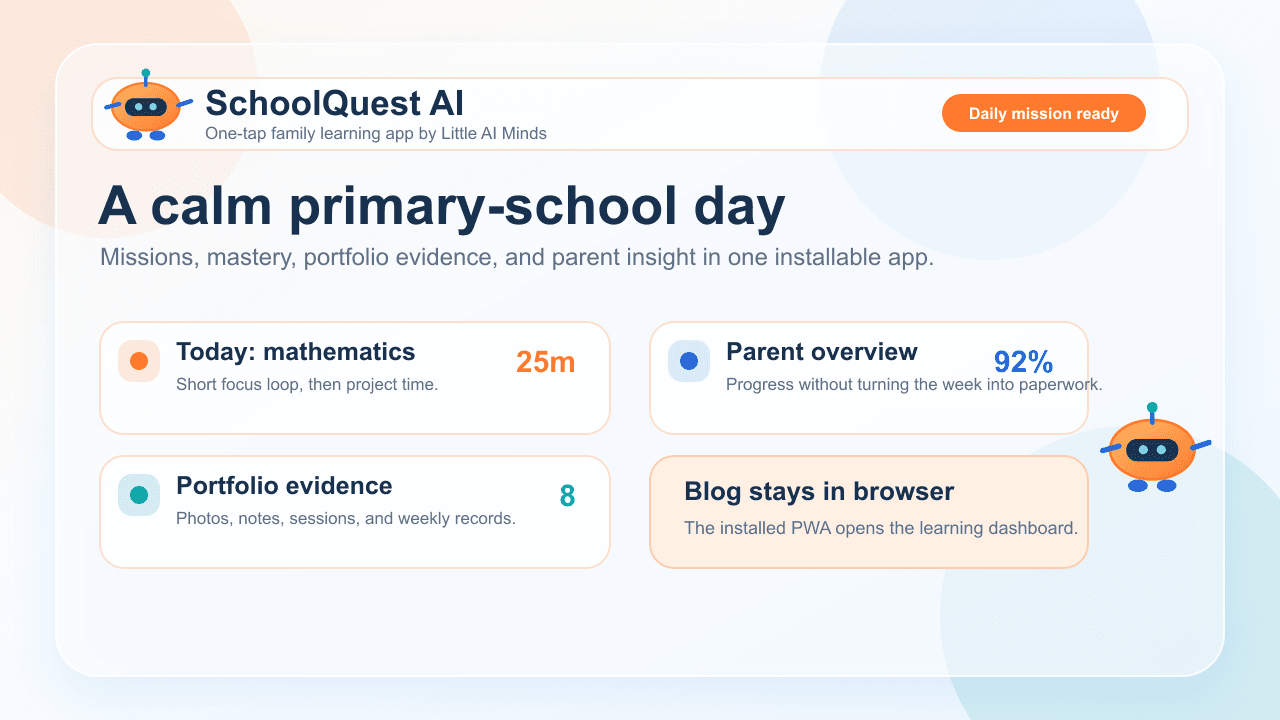
Save SchoolQuest AI to a phone or tablet so your child can start one focused learning round and you can review progress without hunting through browser tabs.
Phone and tablet setup
Setup takes place in the browser and creates a familiar home-screen icon for the family device.
Open SchoolQuest AI in the browser and sign in on the phone or tablet your family will use.
On iPhone or iPad use Share, then Add to Home Screen. On Android or Chrome use Add to Home Screen or Install app.
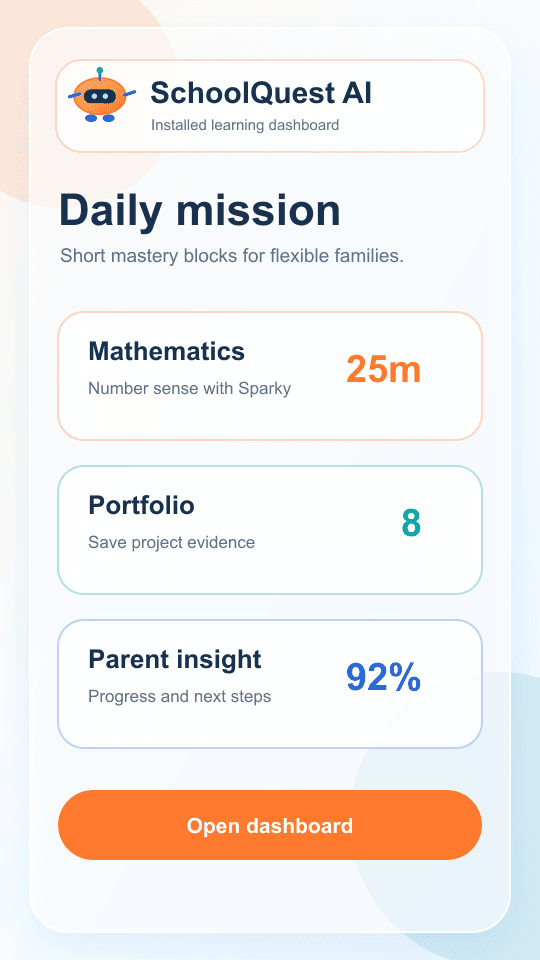
The home-screen icon opens the learning area so your child can begin the next round without extra steps.
Phone and tablet setup
The home-screen icon is for focused learning and records. Parent guides, safety notes, plans, and legal information stay easy to reach when adults want to read more.
The learning area keeps the child path close to short rounds, hints, visual topic support, and portfolio evidence.
Parents use the same learning area for planning, progress signals, evidence records, and the first-week rhythm without extra navigation.
Guides, safety information, plan details, and legal notes are there when adults want context before deciding.
The home-screen version is intentionally calm. It focuses on child learning rounds and parent records.
Supported browsers can expose shortcuts for the daily mission, portfolio evidence, and parent overview.
Your child starts in a focused learning area. Adults can still read guides, safety details, plans, privacy, and support whenever they need context.
Blog